Security Settings in the Control Panel
How to change account security settings
1. General Information
To enhance account security, it is recommended to:
- enable Two-Factor Authentication (2FA);
- restrict login access by IP address;
- use a strong password and change it periodically.
All security settings are located in:
Settings → Security

2. Two-Factor Authentication (2FA)
In the Security section, there is an Authenticator toggle.
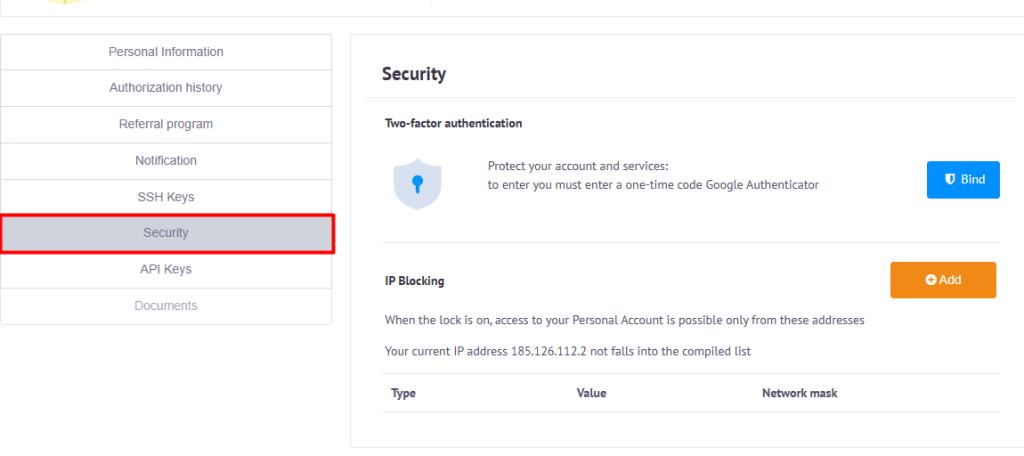
After enabling the toggle, a setup page opens displaying:
- a QR code for connection;
- recommended authenticator applications (Google Authenticator, Microsoft Authenticator, etc.).
To complete setup:
1. Install an authenticator app.
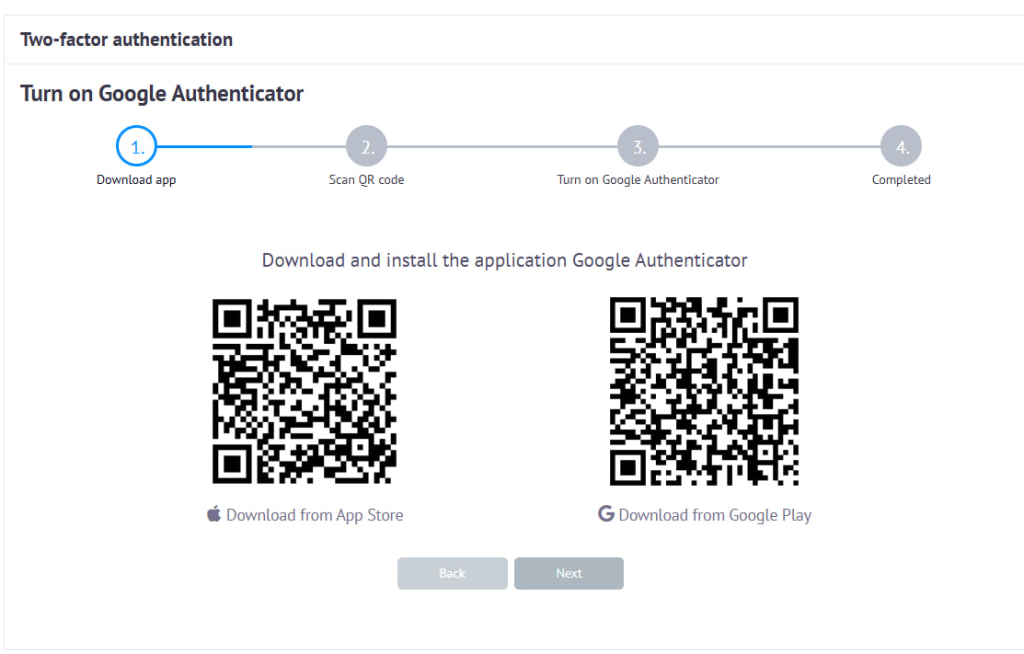
2. Scan the QR code to link your account.
3. Enter the generated 6-digit code to confirm activation.
After activation, a one-time verification code will be required at every login.
3. IP Access Restriction
In the same Settings → Security section, you can restrict login access by IP address.
To configure:
1. Click Add.
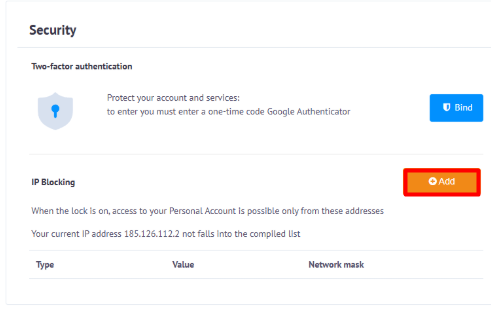
2. Enter the allowed IP address or subnet.
3. Save changes.
After configuration, login will only be possible from specified addresses.
⚠ If you use a dynamic IP (DHCP), your address may change automatically, which may block access to your account.
4. Password Recommendations
It is recommended to:
- use a password of at least 12 characters;
- combine uppercase and lowercase letters and numbers;
- avoid reusing passwords across services;
- change the password periodically.
You can generate a secure password using:
https://rx-name.net/tools/password-generator