How to Change Domain Contacts
Changing domain contacts through your personal account
1. What You Need to Know
For international domains (.com, .net, .org, etc.)
Changing the Registrant contact requires email confirmation from:
- the previous owner
- the new owner
For Ukrainian domains
Confirmation is not required.
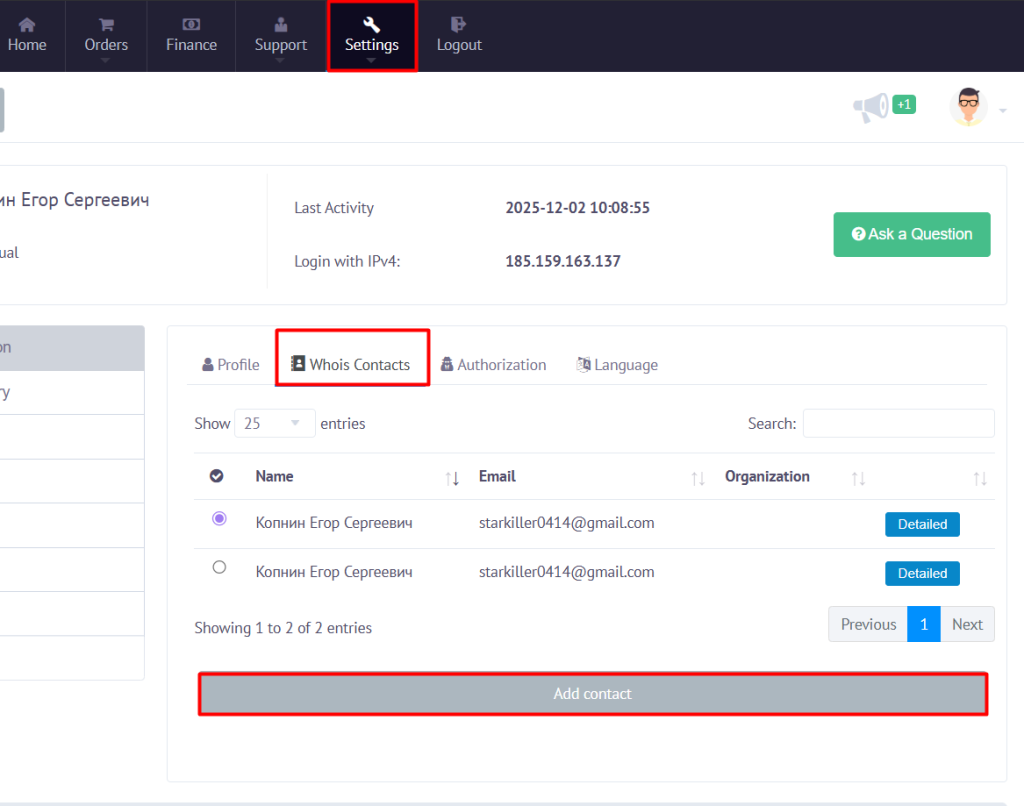
2. Adding a New Contact Profile (WHOIS Contact)
- Go to “Settings” → “WHOIS contacts”.
- Click “Add contact”.
- Fill in the contact information form.
- Save the changes (“Save”).
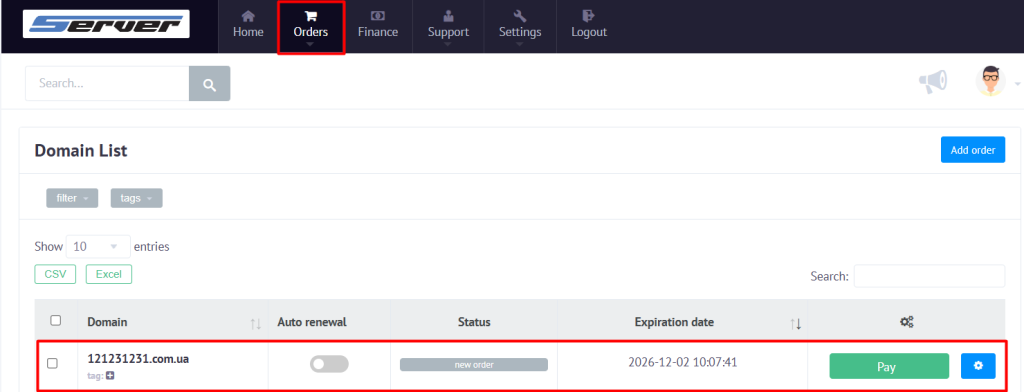
3. Changing Contacts in a Domain
- Open “Orders” → “Domain name”.
- Select the required domain.
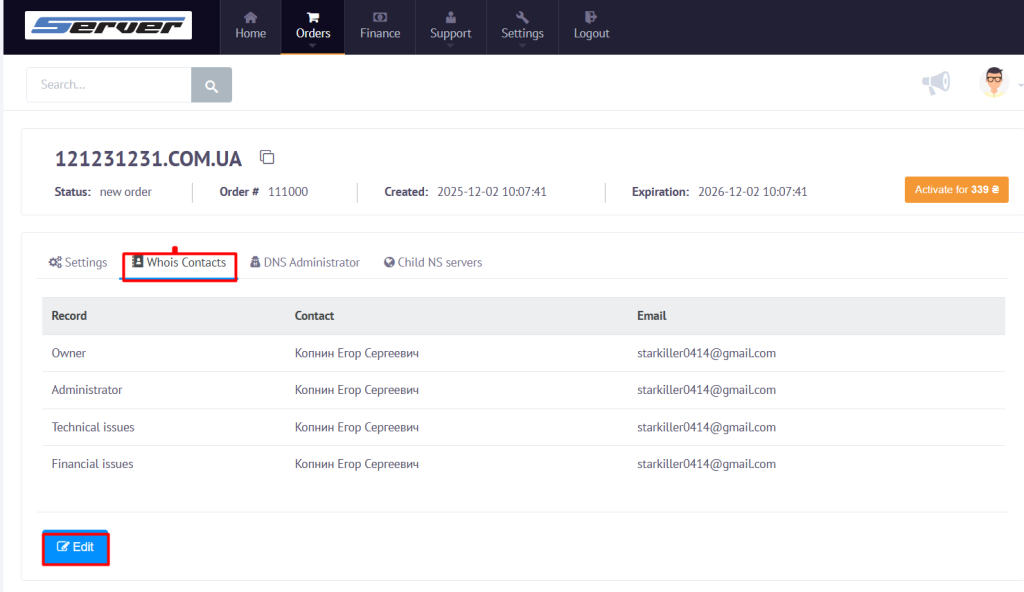
- Go to the “WHOIS contacts” section.
- Click “Edit”.
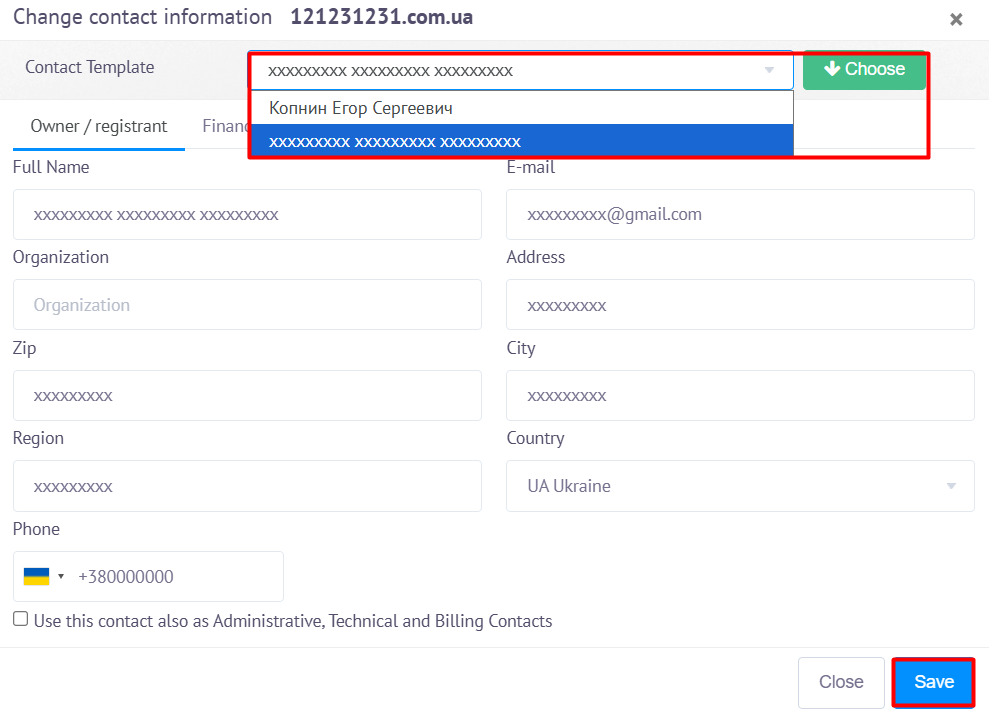
- Select the required contact from the dropdown list.
- Click “Save”.
4. Confirmation (for international domains only)
After saving the changes:
- the previous registrant will receive a confirmation email
- the new registrant will also receive a confirmation email
The change will be applied only after both approve it.
5. When the Change Is Not Applied
- emails from both sides are not confirmed (for international domains)
- the contact is not added in Settings → WHOIS contacts
- the domain is locked with a status (clientUpdateProhibited, clientTransferProhibited)
- there are no permissions to manage the domain in the control panel