Transferring a Domain Name to Another RX-NAME Account
How to transfer a domain to another account
This procedure allows you to quickly transfer domain management to another RX-NAME user without changing the registrar (within the same system).
Step 1: Log in to the control panel
- Log in to your personal account on the RX-NAME website.
- In the main menu, select the section “Orders” → “Domain names”.
- Find the domain you want to transfer and click on it to open the settings.
Step 2: Activating the transfer procedure
1. In the domain settings menu, find and select the option “Move service” to another RX-NAME account.
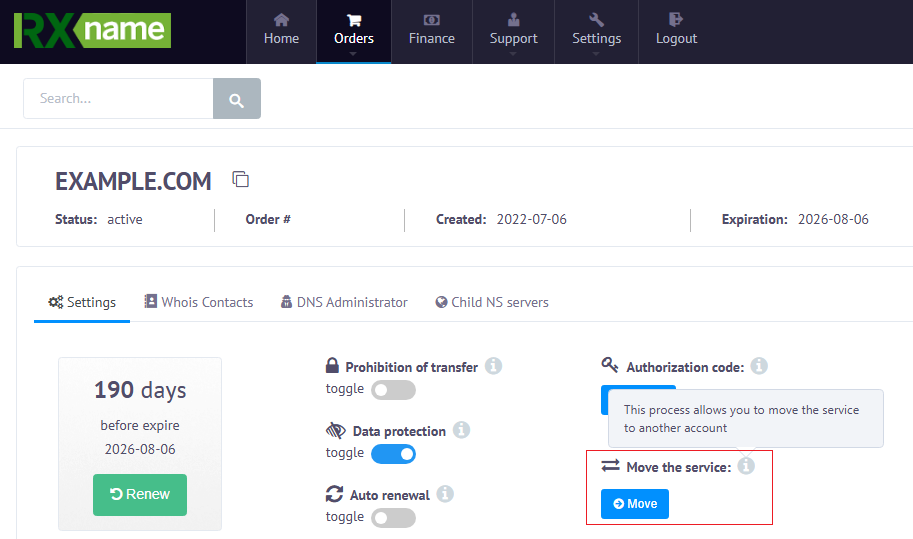
2. The system will open a form where you need to enter the recipient’s details.
Step 3: Information required for the transfer
For a successful transfer, you only need to know one identifier of the recipient (the person to whom you are transferring the domain):
- ID (Personal account number).
- Recipient’s e-mail (the email address used to register the recipient’s RX-NAME account).
Please note: the recipient must already have a created and verified account in the system.
After filling in the fields, click the confirmation button. Usually, you will receive an email for verification of this action.
What to do if you cannot transfer it yourself?
In some cases, self-transfer may be blocked for technical reasons or due to certain restrictions (for example, if the domain was registered recently or theft protection is enabled).
Important: if an error occurs during the process or the required option is unavailable in your account, you must contact RX-NAME technical support.
How to request assistance
- Create a ticket (request) via the “Support” section in your personal account.
- Specify the domain name and the e-mail of the account to which the transfer should be made.
- The request must be sent from the account that currently owns the domain.